
Quick-reply buttons
Let customers tap a button instead of typing. You define buttons in an agent's instructions, and the agent attaches them to its replies.
Quick-reply buttons appear under an agent's WhatsApp message. They make common next steps one tap away and keep conversations on a predictable path. WhatsApp shows up to three buttons per message.
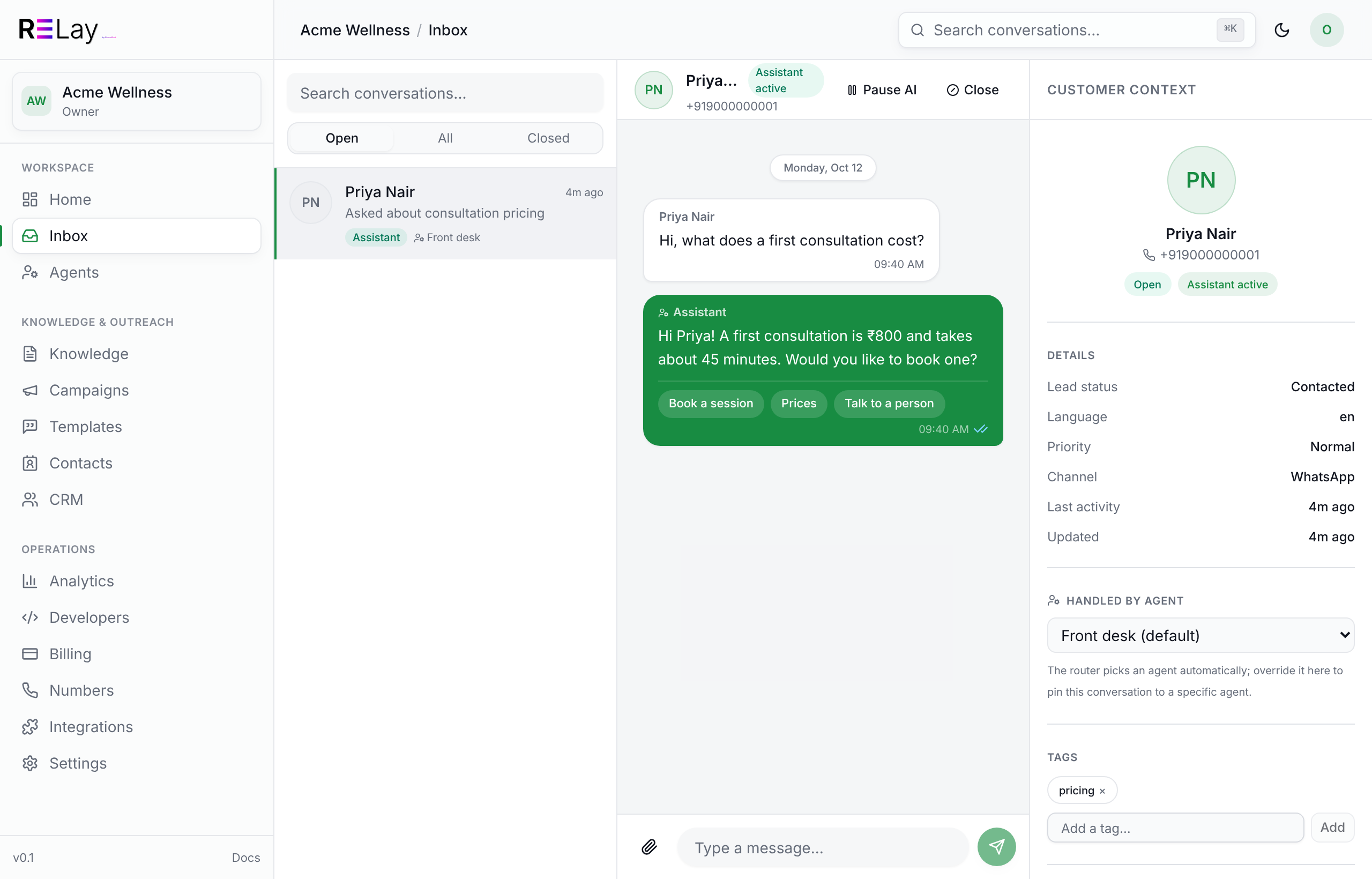
How it works
Buttons are configured entirely in the agent's instructions, in two parts:
- Define each button once, anywhere in the instructions.
- Tell the agent when to attach buttons, by referring to each button's value.
Relay removes the button markers before the message is sent, so customers only see the reply text and the buttons.
Define buttons
Add one line per button. Each button has a name, the label customers see, and a value, a short stable ID you refer to in your rules.
@bm-btn {name:"Track my order", value:"track_order"}
@bm-btn {name:"Talk to a person", value:"handoff"}
To attach several buttons with one line, group them into a named menu:
@bm-menu {id:"main", buttons:"track_order, handoff"}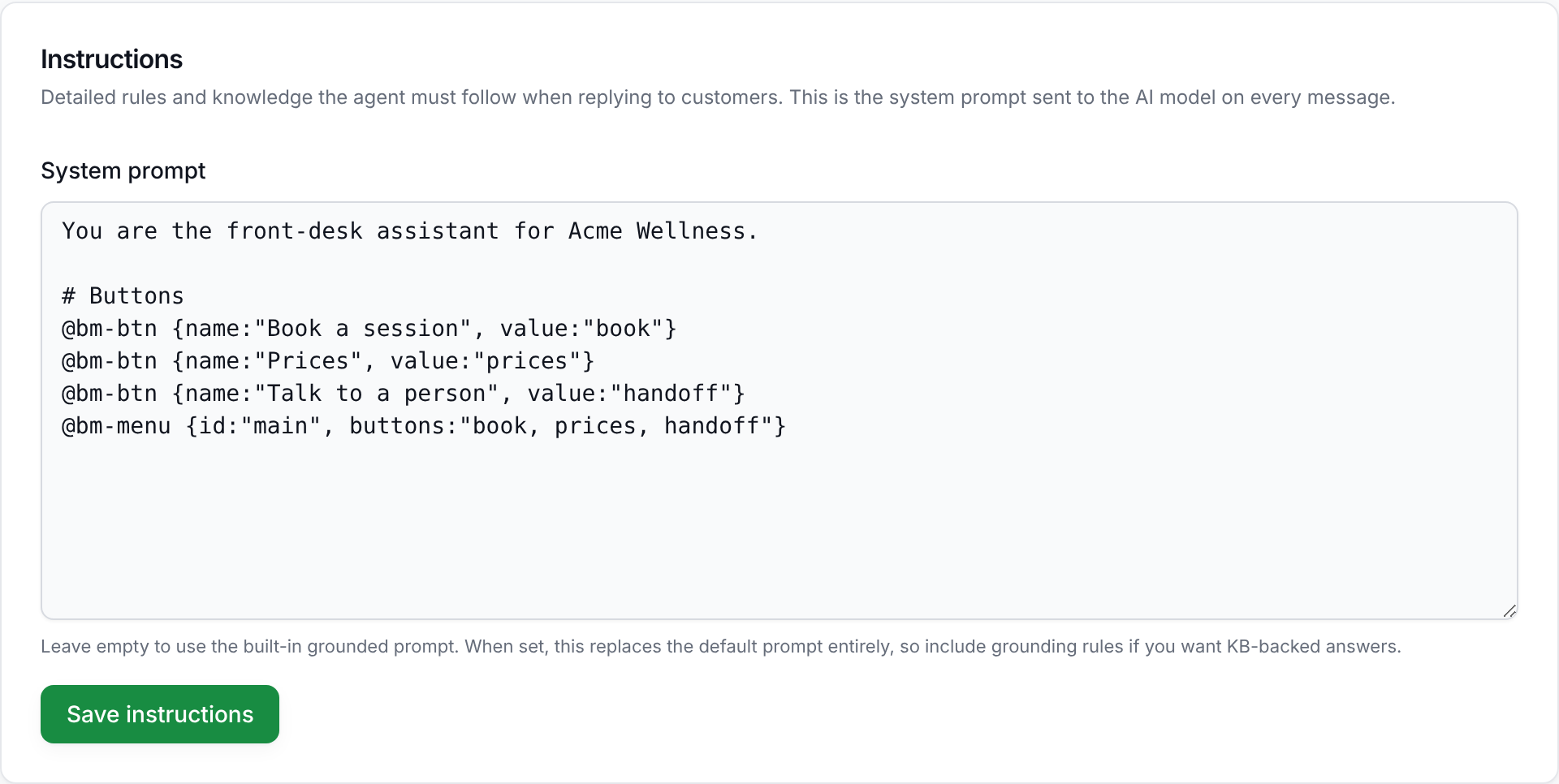
Attach buttons to a reply
In your rules, tell the agent to end its reply with the marker. Use only the value (or the menu id) when attaching.
When the customer asks about their order, reply with one short line,
then end the reply with:
@bm-menu {id:"main"}
You can also attach individual buttons:
@bm-btn {value:"track_order"}
@bm-btn {value:"handoff"}→ attach @bm-btn {value:"size_200"}. The marker becomes a button but the words around it stay visible. Put each marker alone on its own line at the end of the reply. See Common mistakes.Handle button taps
When a customer taps a button, the agent receives their message ending in [button:<value>]. Write a rule for each value:
If the message contains [button:track_order], ask for the order number.
If the message contains [button:handoff], tell the customer a teammate will reply shortly.
Rules and limits
| Rule | Detail |
|---|---|
| Buttons per message | At most 3 (a WhatsApp limit). Additional buttons are dropped. |
| Label length | At most 20 characters. Longer labels are shortened. |
| Allowed values | Only values defined with @bm-btn are sent. Unknown values are ignored. |
| What customers see | Markers are always removed; customers never see @bm-btn or @bm-menu. |
Worked example
A product picker for an online store. Adapt the names and values to your catalogue and paste the pattern into your agent's instructions.
You are the shop assistant for CocoGlow.

# Buttons
@bm-btn {name:"Coconut oils", value:"cat_coconut"}
@bm-btn {name:"Cooking oils", value:"cat_cooking"}
@bm-btn {name:"Best sellers", value:"cat_best"}
@bm-btn {name:"200 ml", value:"size_200"}
@bm-btn {name:"250 ml", value:"size_250"}
@bm-btn {name:"500 ml", value:"size_500"}
@bm-menu {id:"categories", buttons:"cat_coconut, cat_cooking, cat_best"}
@bm-menu {id:"sizes", buttons:"size_200, size_250, size_500"}

# Flow
When the customer wants to buy, reply "What are you looking for?"
and end the reply with this line and nothing else:
@bm-menu {id:"categories"}

When they pick a category ([button:cat_coconut] and so on), show the
products, ask "Which size would you like?" and end the reply with:
@bm-menu {id:"sizes"}

When they pick a size ([button:size_200] and so on), show the price
and current offer.
Every @bm-menu or @bm-btn line stands alone at the end of the reply, with no other words on the same line.
Common mistakes
| Avoid | Do instead |
|---|---|
→ attach @bm-btn {value:"size_200"}The words “→ attach” stay visible. | @bm-btn {value:"size_200"}The marker alone on its own line. |
Attaching by label: @bm-btn {name:"200 ml"} | Attach by value: @bm-btn {value:"size_200"} |
| Attaching a value that was never defined. | Define every button once before attaching it. |
| Offering five or more buttons in one message. | Keep to three; use a follow-up message or a second menu for more. |
Test before going live
- Open the agent
Go to Agents›your agent and save your instructions.
- Run a message in the Test playground
Scroll to Test playground, type a message that should trigger buttons, and select Run.
- Check the preview
The preview shows the exact reply text and the buttons that will be attached. Confirm there is no leftover marker text.

Next: learn how conversations reach your team in the quick start test, or fix issues in Troubleshooting.