
Quick start
Create a workspace, connect your WhatsApp Business number, set up an AI agent, and confirm messages flow end to end.
This guide takes a new workspace to a live WhatsApp number with an AI agent replying to customers. Once your Meta Business account is verified it takes about 10 minutes.
- A Meta Business account at business.facebook.com, with business verification completed.
- Admin access to that Business account (Employee access is not enough).
- A phone number for WhatsApp. It can be new, or currently used by the WhatsApp Business App or another provider (see Migrate a number).
Create your workspace
- Sign up
Go to Sign up and create an account with your work email or Google.
- Name the workspace
Use your business name. Teammates you invite later join this workspace.
- Continue to onboarding
You are taken to the WhatsApp connection page automatically.
Connect your WhatsApp number
Relay uses Meta's Embedded Signup, so you connect the number from inside Relay. Relay registers the number and subscribes it to incoming messages for you.
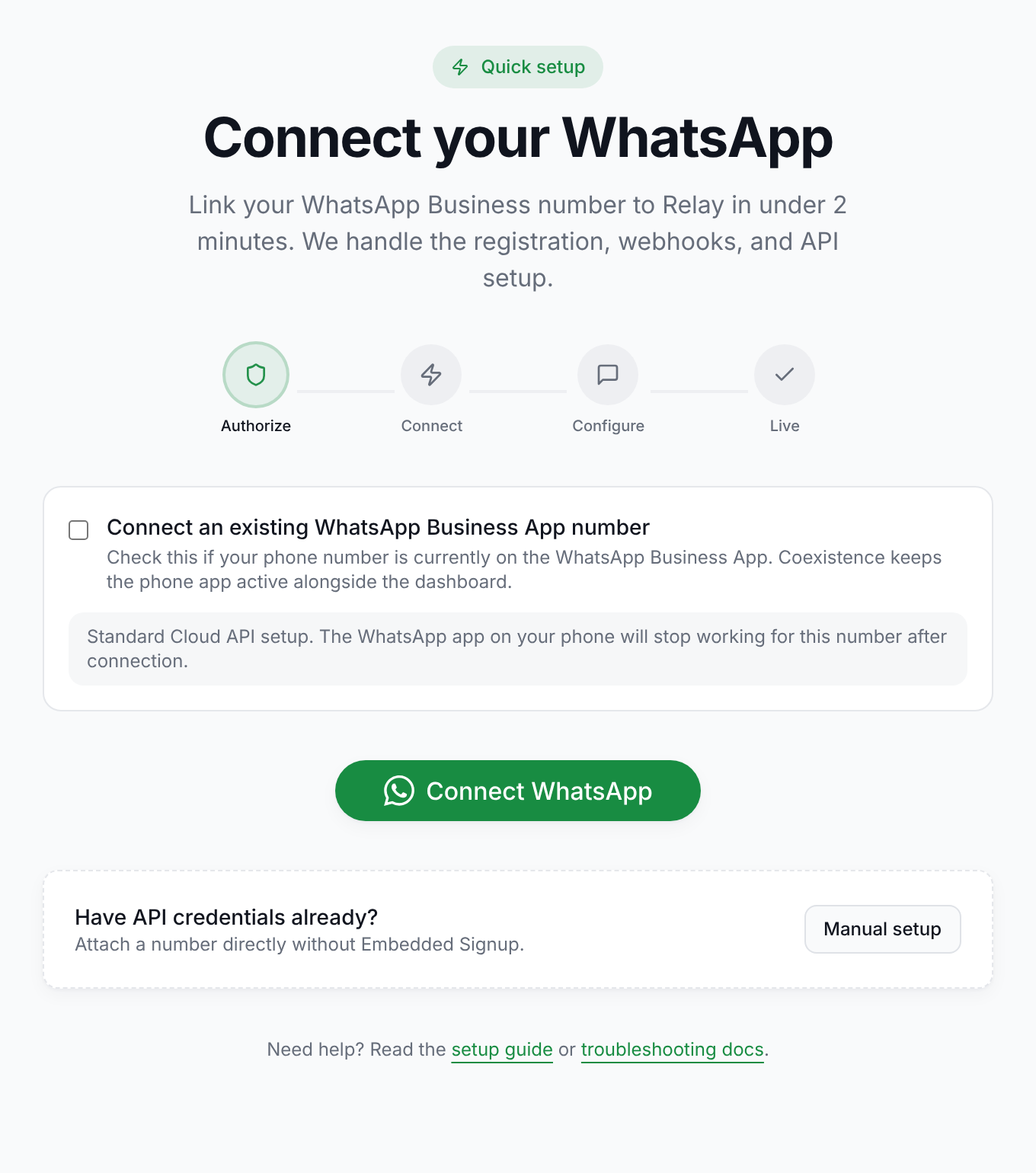
- Choose how the number is used today
If the number is active in the WhatsApp Business App on a phone, tick Connect an existing WhatsApp Business App number. See Using the phone app alongside Relay before you decide.
- Select Connect WhatsApp
A Meta window opens. Allow pop-ups for Relay if your browser blocks it.
- Sign in to Facebook and pick your business
Use the Facebook account that owns your Business account, then select the Business and the WhatsApp Business Account, or create a new one.
- Choose and verify the number
Select the phone number and enter the verification code Meta sends by SMS or call.
- Wait for the Live stage
Relay finishes registration and webhook setup. The number then appears under Settings›Numbers.
Using the phone app alongside Relay
When you connect a number that is already in the WhatsApp Business App, you choose whether the phone app keeps working.
| Option | What happens |
|---|---|
| Coexistence on | The phone app and Relay both work, and you can reply from either. Messages sent from the phone app do not appear in the Relay inbox. |
| Coexistence off (default) | The phone app stops working for this number. All conversations are handled in Relay. |
Configure your AI agent
- Open Agents and create an agent
In the sidebar select Agents, then Create agent.
- Set identity and languages
Give the agent a name, persona and tone, and choose the languages it may reply in. The first language is the one it starts every conversation in.
- Write instructions (optional)
Instructions are the rules the agent follows on every message. Leave them empty to use Relay's built-in prompt, which only answers from your knowledge base.
- Attach knowledge
Attach a Knowledge collection with your FAQs, policies and product details so answers are grounded in your own content. Knowledge requires the Starter plan or above.
- Save
The agent starts replying to new messages on numbers that have AI enabled.
Send a test message
- Message your number from another phone
Use a phone that is not the connected number.
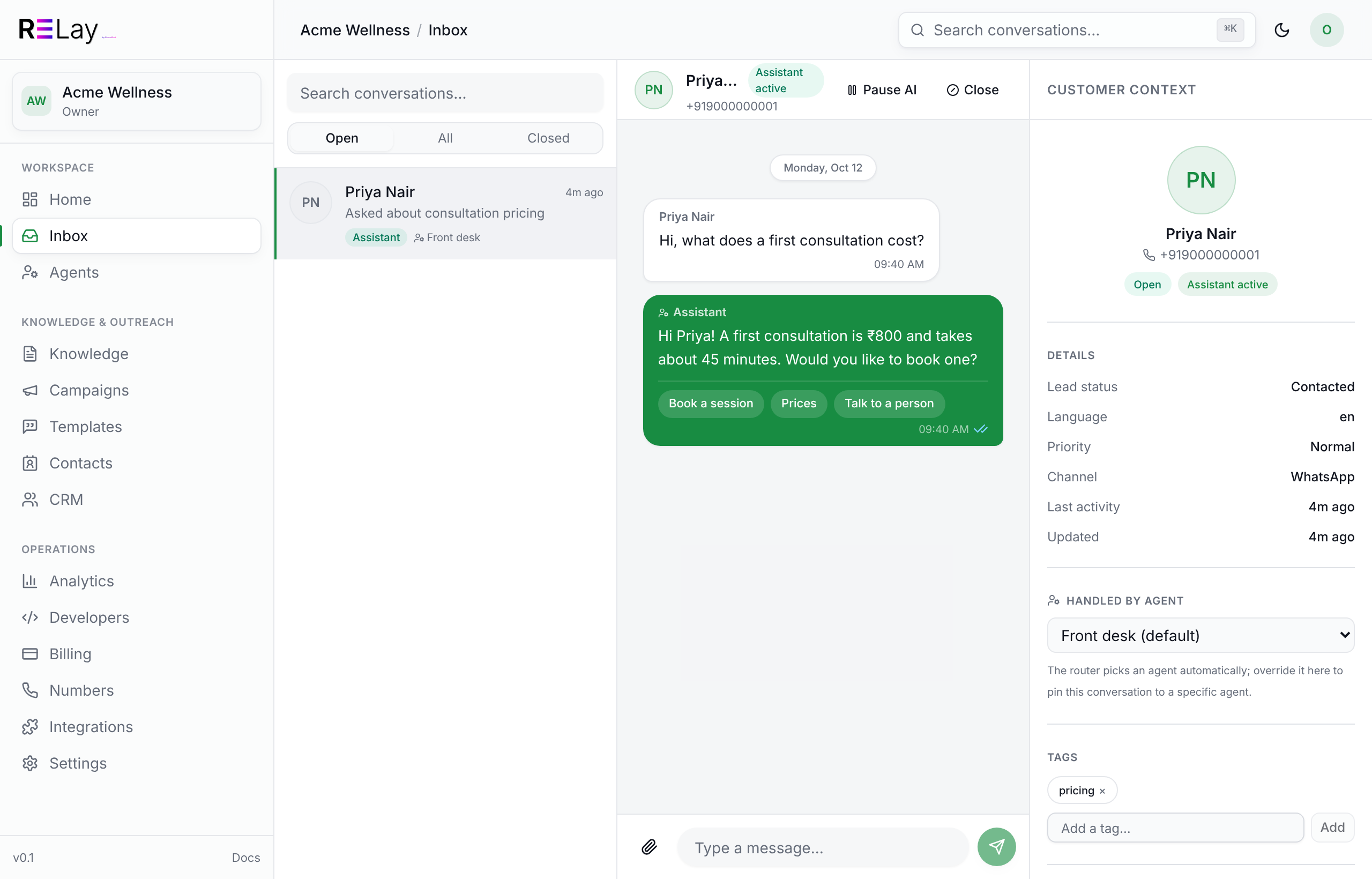
- Watch it arrive in the Inbox
The conversation appears within a few seconds, with the customer's details on the right.
- Check the AI reply
If AI is enabled for the number, the agent replies within seconds.
- Take over as a person
Select Pause AI in the conversation header, then type your reply. While the AI is paused only your team replies in that conversation. Sending a reply without pausing does not stop the agent.
If no reply arrives, check that AI auto-reply is on for the number under Settings›Numbers, then see AI agent not replying.
Prepare for production
- Create message templates under Templates. WhatsApp requires an approved template to start a conversation, or to reply more than 24 hours after the customer's last message.
- Add knowledge so the agent answers from your own content.
- Invite your team so they can take over conversations from the Inbox.
- Review your plan limits under Billing.
Plan limits
| Plan | Included |
|---|---|
| Free | 1 agent, 100 messages per month, no knowledge base. |
| Starter | 3 agents, 5,000 messages per month, 1 knowledge document. |
| Growth | 10 agents, 20,000 messages per month, unlimited knowledge documents. |
Get help
See Troubleshooting for common problems, or email support@branemind.com with your workspace name.